How to Import Data From Evaluations
1. Fill out the Initial/Midterm/Final evaluation form using the fillable Adobe .pdf in the Internship Materials folder2. Print a copy for the intern’s hard-copy file
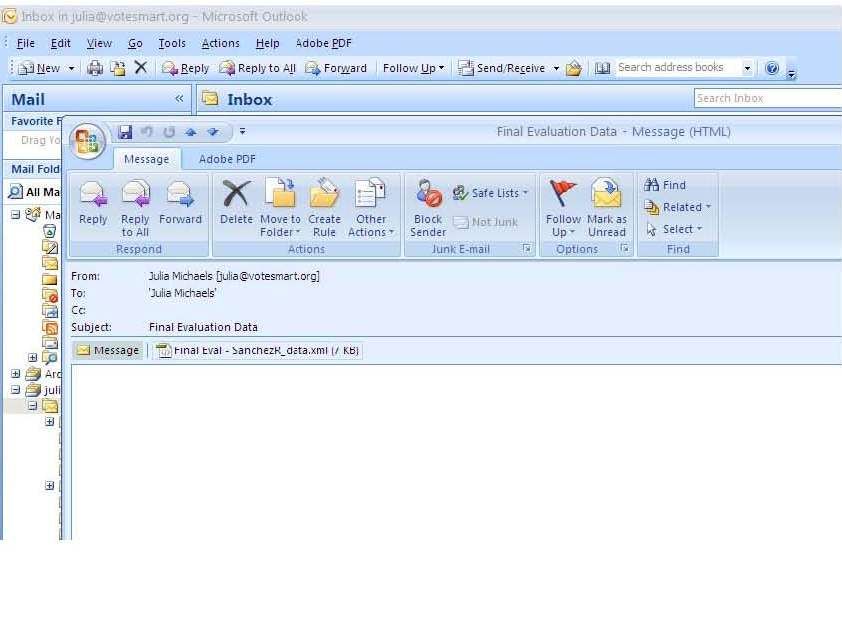
3. Click the "Submit by Email" button at the top of the page. If you have Outlook configured correctly, an email should open automatically with the data file attached, as shown. You can either right-click and download the data file from here or you can send the email to yourself (or to the default address, projectvotesmart@austin.utexas.edu) for future use.
4. In Access, click on the External Data tab, then XML File in the Import section of the ribbon. The following dialog box should appear:
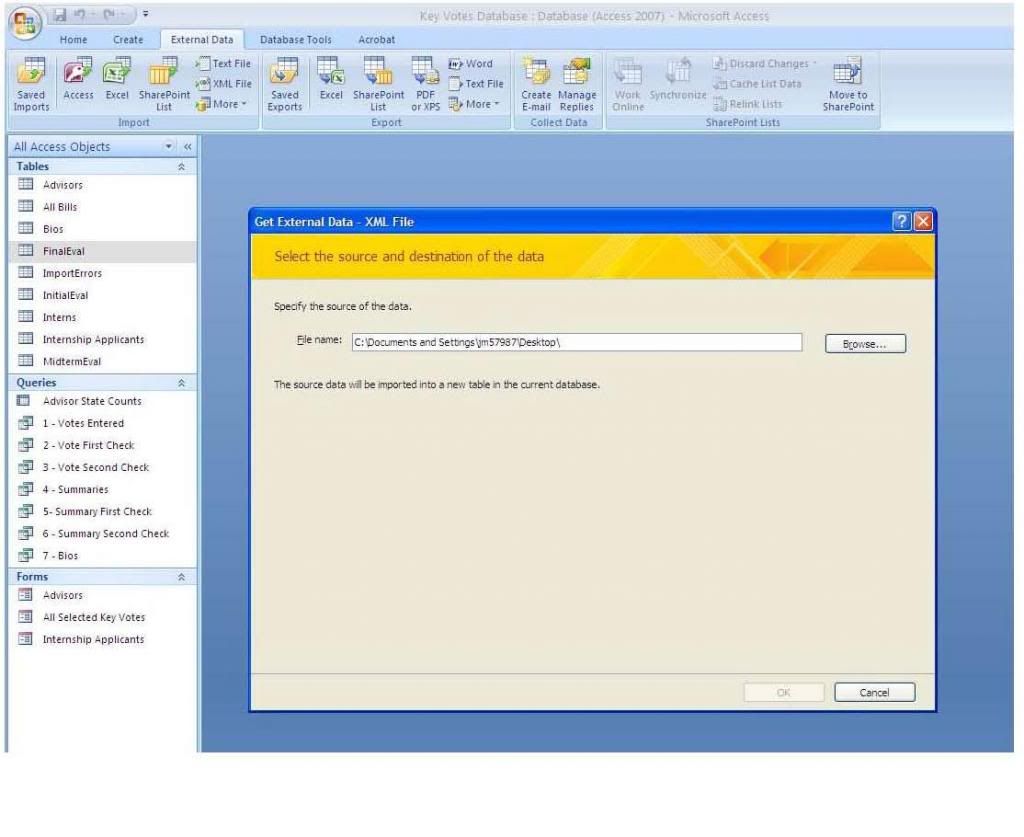
5. Select Browse… to select the XML file, and click OK.
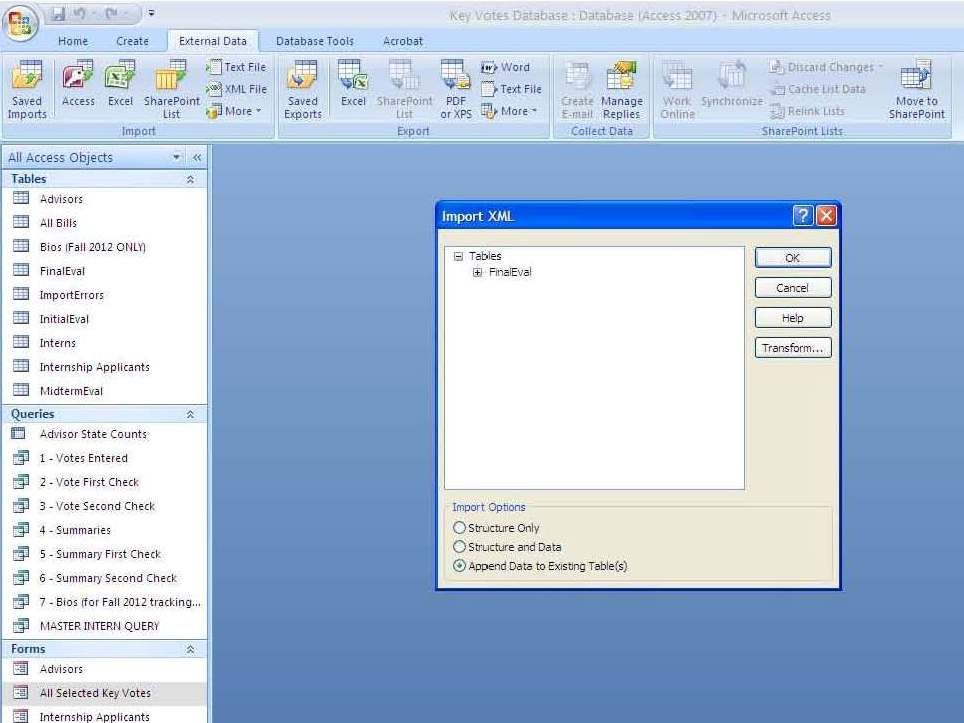
6. Select "Append Data to Existing Table(s)" and click OK.
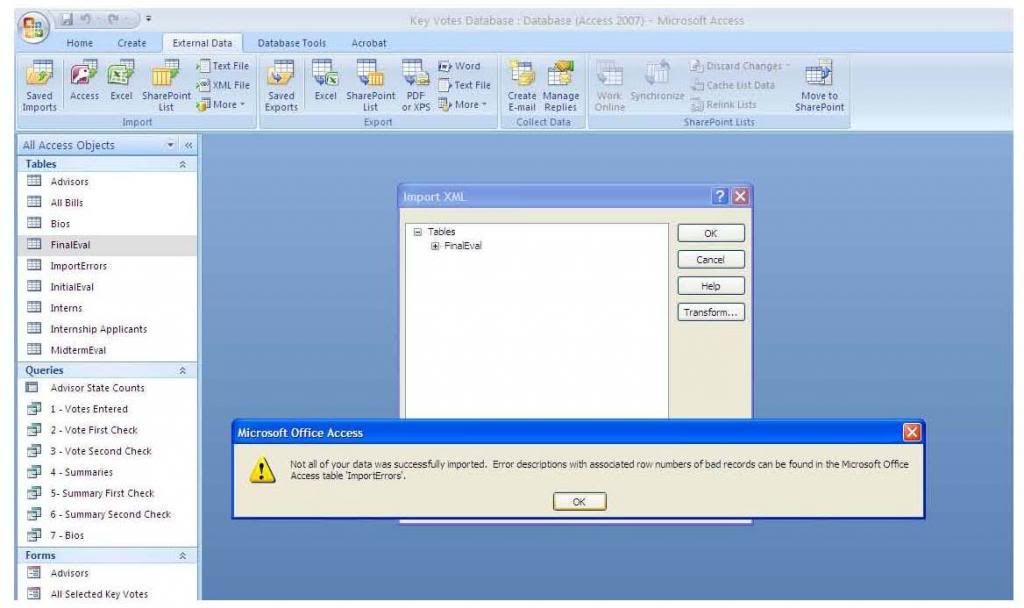
7. You may receive an error message telling you that not all of your data was imported, but what this really means is that Access is truncating the data in the text fields. Fortunately, it's not critical that we include all of our qualitative comments in Access because this information is stored elsewhere (in the fillable .pdf). We are only concerned with the numerical data, which we need to have in Access for statistical purposes.
InternalDatabaseKeyVotes
