Revision [7419]
This is an old revision of InternalDatabaseKeyVotes made by JuliaMichaels on 2012-12-04 11:07:36.
Instructions for Using the Internal Database
How to add a new record
1. Open the form into which you'd like to add a new record
2. Click on the "New Record" button at the bottom of the form
3. When the blank form appears, note the record number at the bottom of the page. It should say something like "XXXX of XXXX".
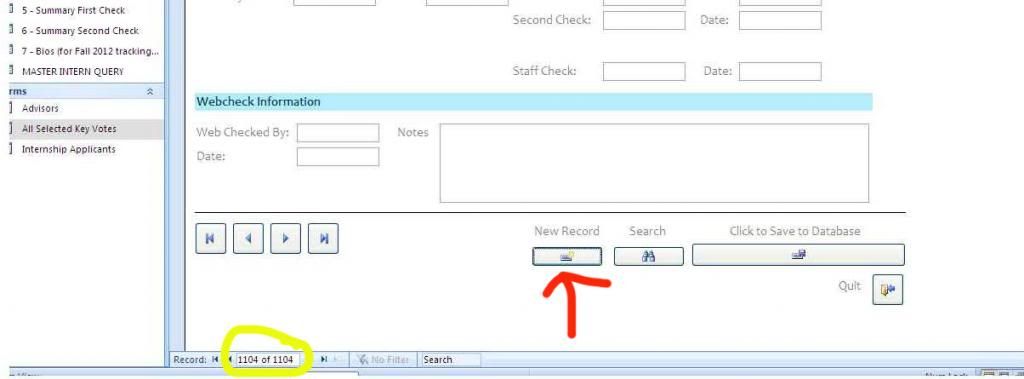
4. Enter that number (in the example above, "1104") into the Primary Key field as shown. You will not be able to save the record until you assign it a Primary Key number
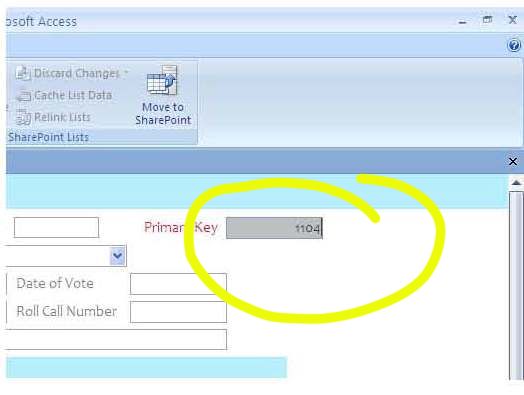
5. Enter remaining values into the field and click the Save button at the bottom of the form to save.
How to find and edit an existing record
1. Open the form corresponding to the table within which you'd like to search
2. Put your cursor inside the field in which you'd like to search. The best field to search in for the All Selected Key Votes Form is the Bill Number field. For Internship Applicants, the last name field is usually the most fruitful.
3. Click the Find button (indicated by the picture of binoculars) OR click CTRL+F.
4. Search for the bill number or last name of interest to bring up that record. If there is more than one record associated with that bill number or last name, click Next (as shown) to cycle through all records associated with that bill number or last name.
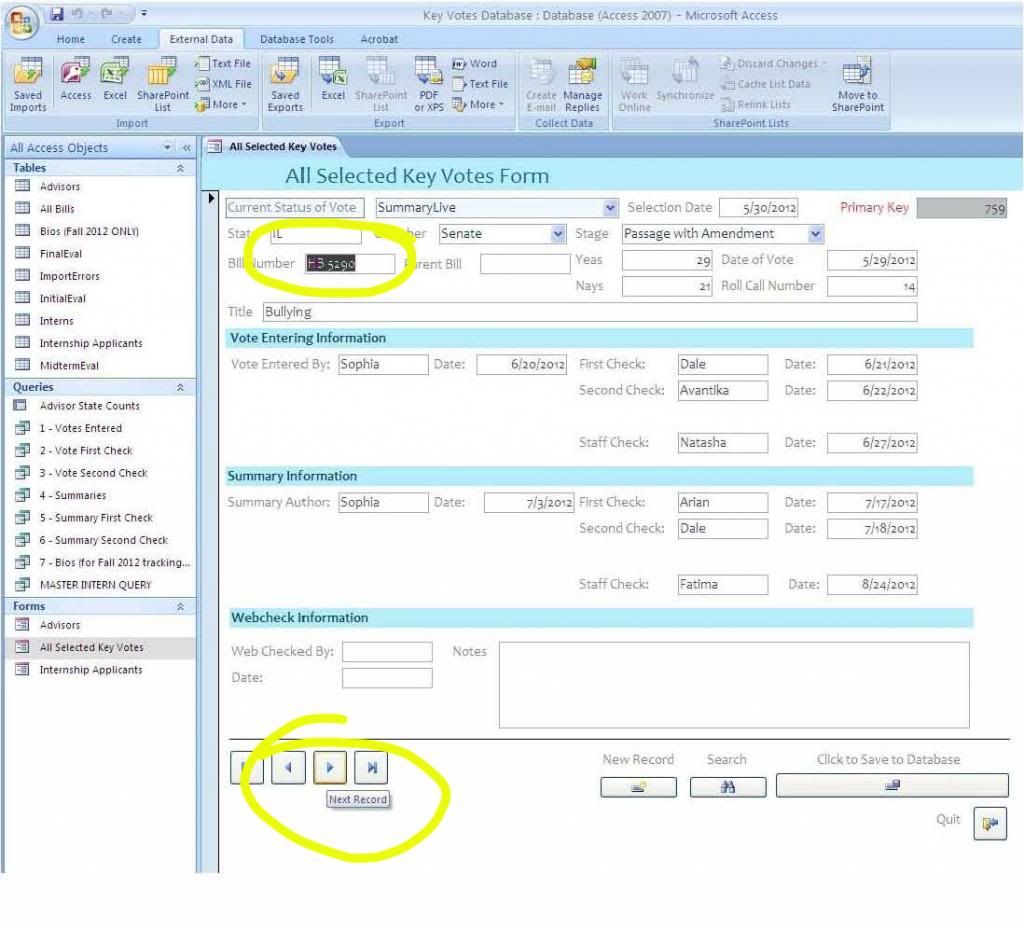
5. When you have found the record you'd like to edit, go ahead and make your changes and click Save.
How to create a query
1. Most of the queries that we use have already been programmed, but if you need to create a new query, the process is simple. Click on the Create tab in the Access Ribbon and select Query Wizard (far right).
2. In the Query Wizard, select the type of query you'd like to run: Find Duplicates (for example, finding how many bills a specific intern has worked on), or Simple Query Wizard, which will return the results from a specific fields from tables or other queries in the database.
3. Select the fields from which you would like to pull data, and give the query a name. It will appear in the list of queries in the left-hand navigation pane in Access until you delete it.
How to import data from an Excel document
1. Click on the External Data tab in the Access ribbon
2. Select "Import Excel Spreadsheet"
3. If you are updating an existing table, select "Append a copy of the records to the table:" and select the appropriate table. If you are creating a new table from the Excel data, select "Import the source data into a new table in the current database."
4. Follow the instructions in the wizard for formatting your data. You may either opt to select your own Primary Key or allow Access to assign a primary key to your data (recommended).
5. Future Excel imports to the same table must follow the exact format of the current table in the database - so if you made changes to your Excel document since the first import, you will have to reverse those changes in order for the data to append properly. Alternatively, you can delete the table and re-import the data, but you will have to first delete any existing relationships between that table and other tables and/or queries before Access will allow you to do this.
How to export data to an Excel document
1. Exporting data to Excel is very easy. Simply click on the table or query that you want to export in the navigation pane on the left, click on the External Data tab in the Access ribbon, and select Export to Excel spreadsheet.
How to import and save XML data from evaluation forms
1. Fill out the Initial/Midterm/Final evaluation form using the fillable Adobe .pdf in the Internship Materials folder
2. Print a copy for the intern’s hard-copy file
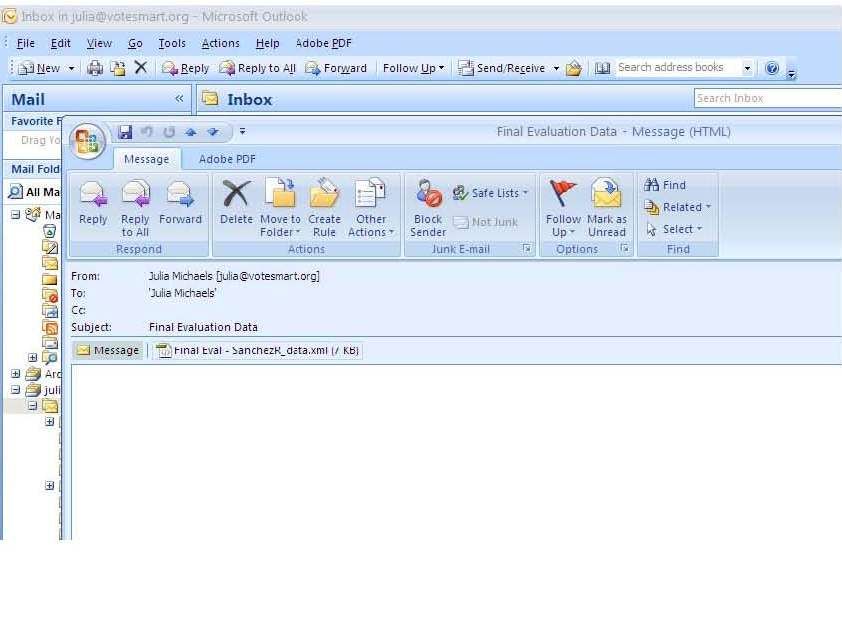
3. Click the "Submit by Email" button at the top of the page. If you have Outlook configured correctly, an email should open automatically with the data file attached, as shown. You can either right-click and download the data file from here or you can send the email to yourself (or to the default address, projectvotesmart@austin.utexas.edu) for future use.
4. In Access, click on the External Data tab, then XML File in the Import section of the ribbon. The following dialog box should appear:
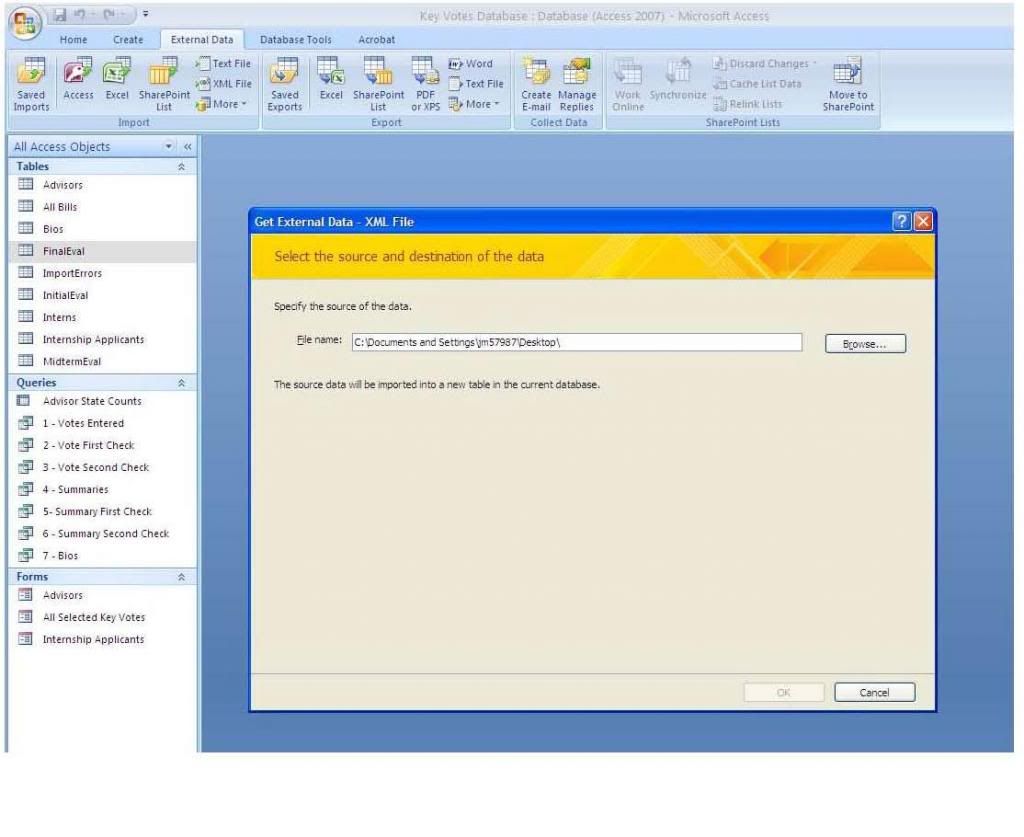
5. Select Browse… to select the XML file, and click OK.
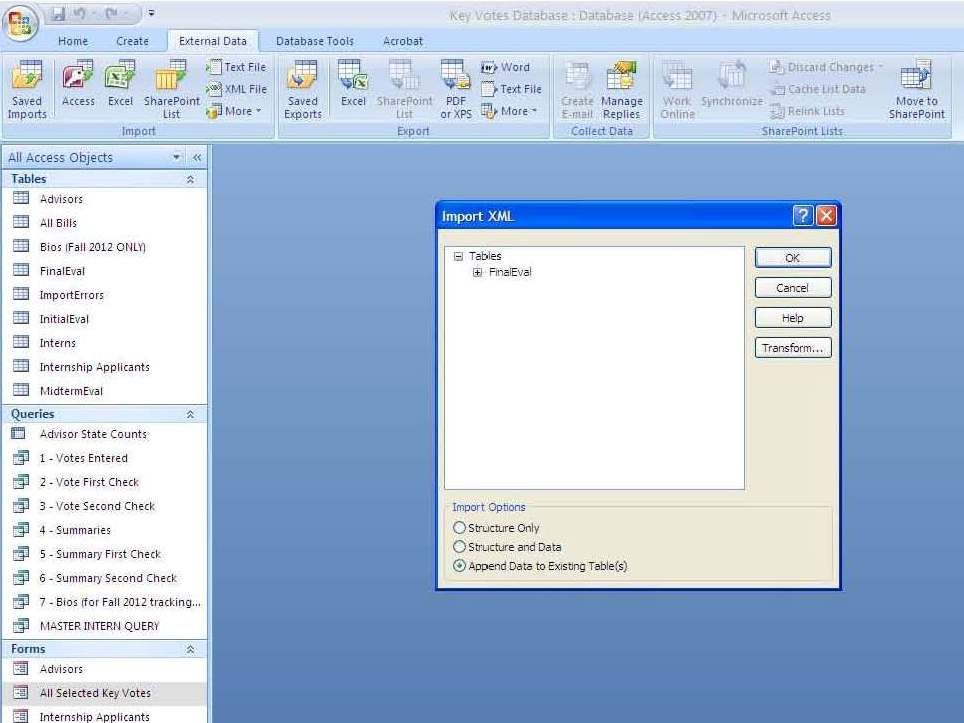
6. Select "Append Data to Existing Table(s)" and click OK.
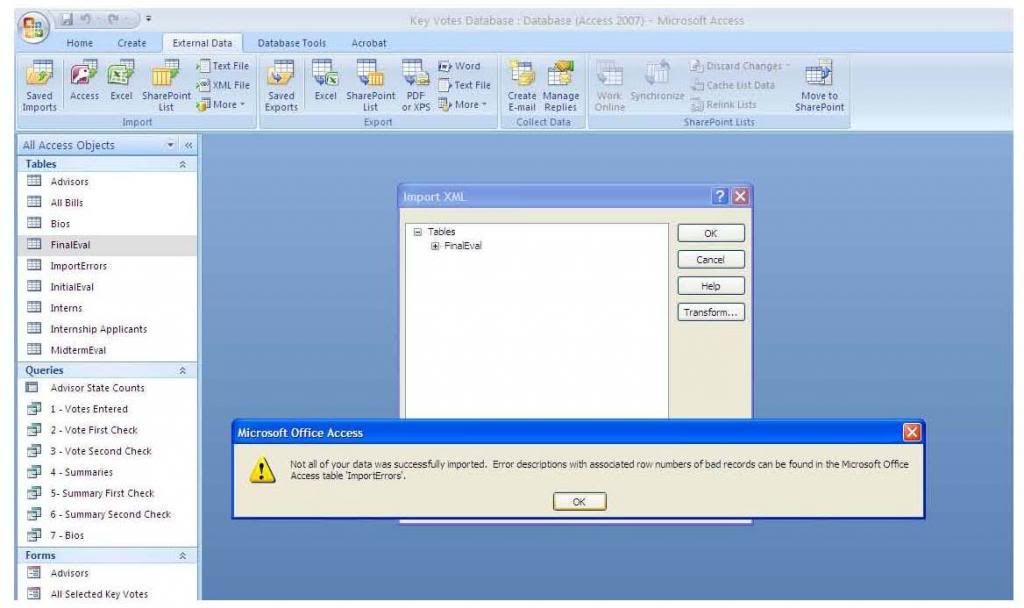
7. You may receive an error message telling you that not all of your data was imported, but what this really means is that Access is truncating the data in the text fields. Fortunately, it's not critical that we include all of our qualitative comments in Access because this information is stored elsewhere (in the fillable .pdf). We are only concerned with the numerical data, which we need to have in Access for statistical purposes.
Editing and deleting relationships between tables
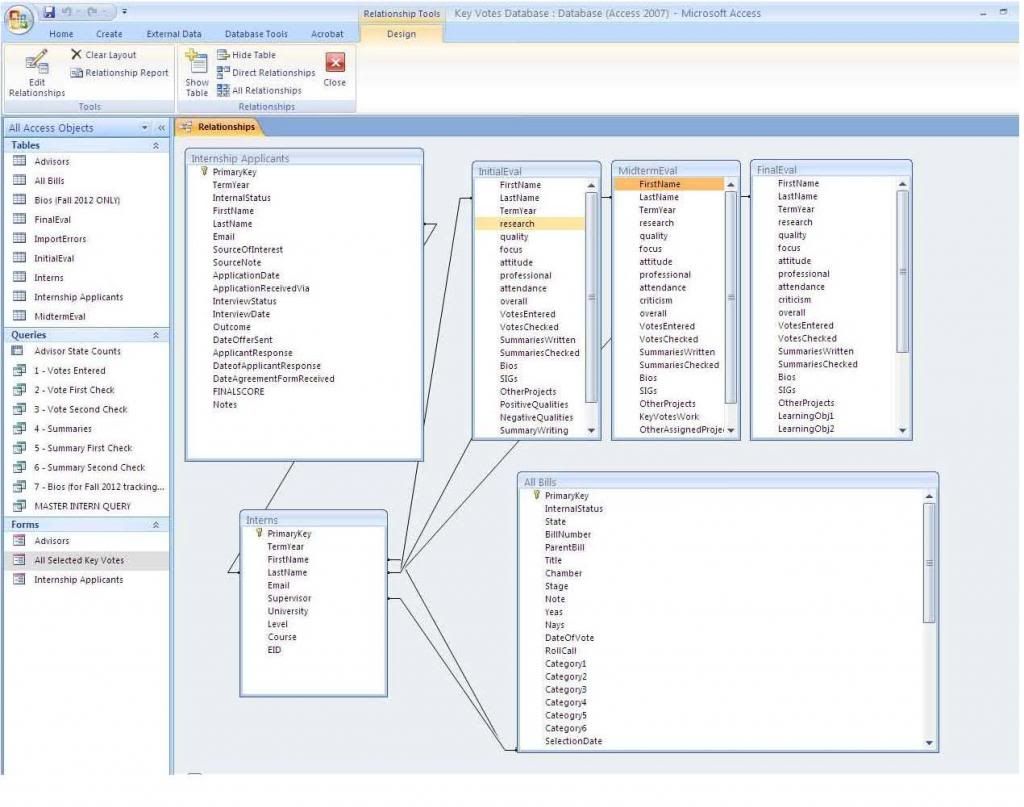
1. If this ever becomes necessary, simply click on Database Tools and select "Edit Relationships."